
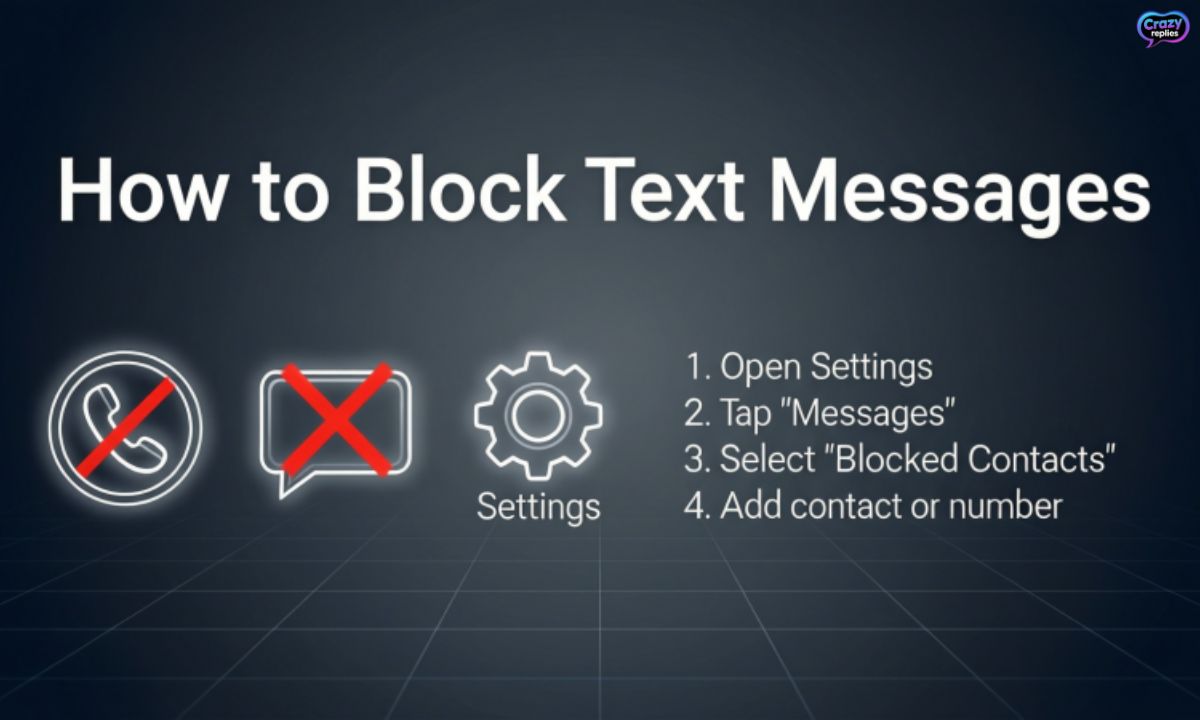
Ever get texts from someone you really don’t want to hear from? Don’t worry you can block them and take back control of your inbox in just a few taps!
Blocking texts isn’t just for annoying contacts it keeps spam away, protects your privacy, and makes your phone feel peaceful again. Say goodbye to unwanted messages and hello to stress-free texting!
Why Would I Want to Block Text Messages?
Nobody wants their phone buzzing with unwanted texts all day. When you block text messages, you take back control of your inbox and your peace of mind.
Spam texts aren’t just annoying they can be dangerous. Learning to block text messages helps you avoid text scams and keeps your personal information safe.
- Declutter inbox :Stop unwanted texts from filling up your SMS inbox and making it hard to find important messages📵
- Protect from scams :Avoid text scams and phishing attempts that try to steal your money or personal data🛡️
- Emotional peace :Stop harassing texts and annoying messages so you can enjoy texting peace of mind without constant interruptions
Choosing How to Block Text Messages
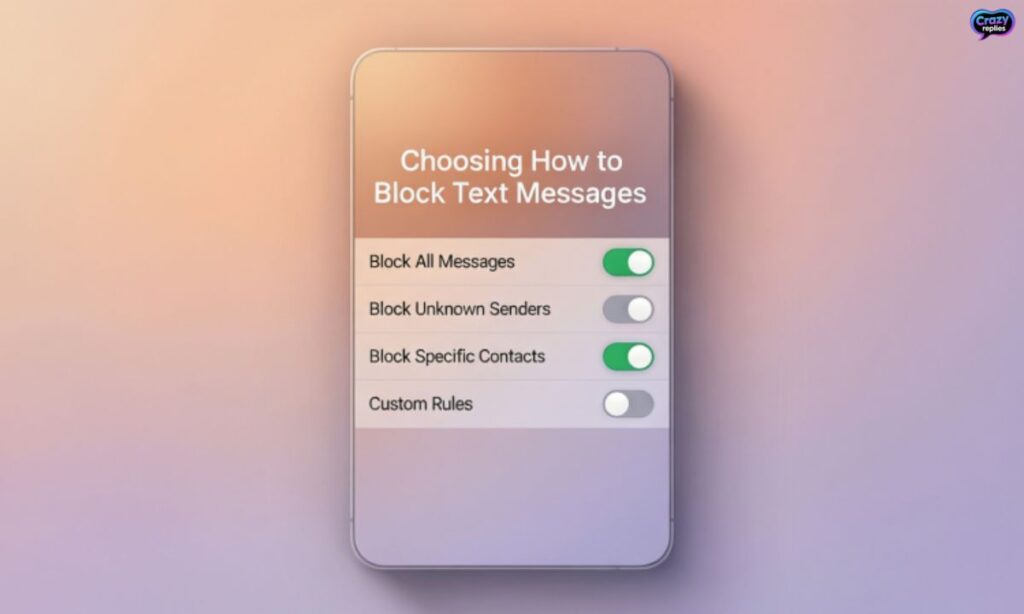
When you want to block text messages, you have several options to choose from. You can use your phone’s built-in settings, ask your carrier for help, download third-party SMS blocker apps, or use business texting platforms with spam protection.
The best way to block text messages depends on your needs and how many spam texts you’re getting. Each method has its own strengths, so let’s break down your choices.
- Personal phone methods :Use iPhone text blocking or Android text blocking features already built into your device
- Carrier services :Contact your mobile provider to filter spam messages at the network level before they reach you
- Third-party apps :Download spam protection apps like Truecaller block texts, Hiya text blocking, or Should I Answer app for advanced filtering
| Method | Pros | Cons |
| Phone Settings | Free, built-in, easy to use, block number permanently | Limited filtering, manual setup for each number |
| Carrier Services | Blocks before delivery, network-level protection | May cost extra, less control over individual contacts |
| Third-party Apps | Advanced features, block texts automatically, detailed spam filtering | Requires app download, possible privacy concerns, some require subscription |
How Do I Block Text Messages on My Phone?
The easiest way to block text messages is right from your phone. Both iPhone text blocking and Android text blocking are built into your device, so you don’t need to download anything extra.
Your phone gives you the power to stop unwanted texts in just a few taps. Whether you use iOS or Android, the process to block text messages is simple and takes less than a minute.
How to Block Text Messages on Android
Android text blocking is super simple once you know where to look. You can block number on Android directly from your messaging app without any extra tools.
When you block text messages on Android, you also get the option to report spam texts. This helps protect other users from the same annoying messages.
- Open your messaging app : Launch the default Messages app or your preferred SMS app on your Android phone
- Select the message : Tap on the conversation with the contact or number you want to block
- Tap Details or More options : Look for the three-dot menu icon in the top right corner and tap it
- Choose Block : Select “Block” or “Block number” from the menu to stop texts from this sender
- Confirm and report spam : Confirm you want to block the number and check the box to report spam texts if it’s unwanted communication
How to Block Text Messages on iPhone
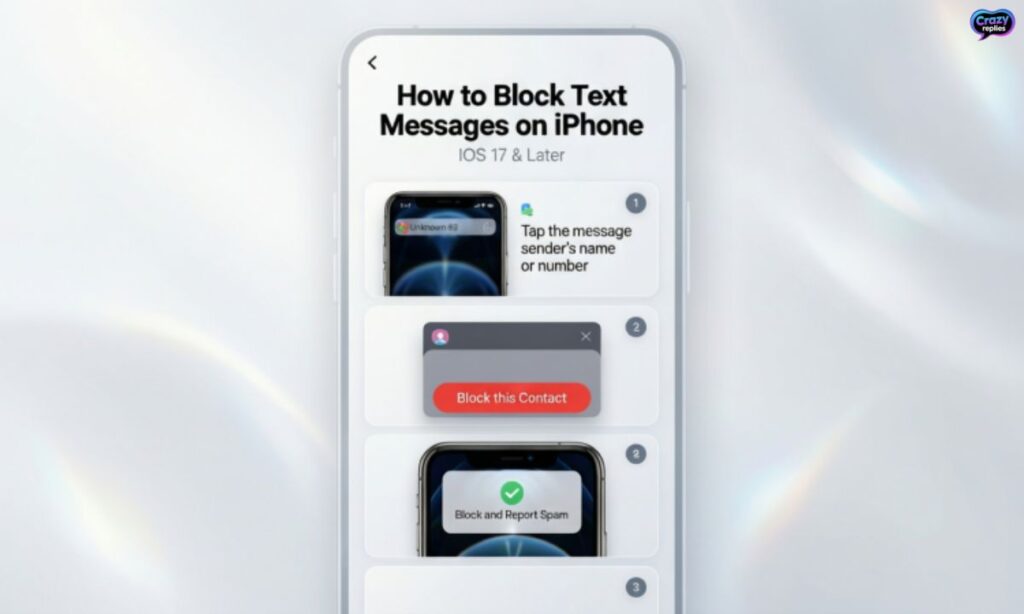
Learning how to block text messages on iPhone is simple and takes just a few taps. Apple makes it easy to stop unwanted texts and filter spam messages directly from your device.
The built-in feature helps you block contact on iPhone permanently. You don’t need any third-party SMS blocker apps everything you need is already in your Messages app.
- Open Messages :Launch the Messages app and find the conversation you want to block
- Select the contact :Tap on the message thread from the unwanted sender
- Tap Info :Click the contact name or number at the top, then select the info icon
- Choose Block :Scroll down and tap “Block this Caller” in blue text
- Confirm the action :Tap “Block Contact” to stop all texts, calls, and FaceTime from that number
Blocking Texts Using Carrier Services
Most mobile carriers offer built-in tools to help you block text messages at the network level. These carrier-level spam filters work before messages even reach your phone, providing an extra layer of mobile text security and SMS spam filtering.
Many providers include free spam protection, while others offer premium services with advanced features:
- Carrier tools :Free built-in spam detection that identifies and blocks known telemarketers automatically
- Premium services :Paid upgrades with enhanced spam message prevention and custom blocking rules
- Network spam protection :Real-time filtering that stops spam texts before they reach your SMS inbox
| Carrier | Free Feature | Premium Service | Cost |
| Verizon | Call Filter Lite | Call Filter Plus | $2.99/month |
| AT&T | ActiveArmor Basic | ActiveArmor Advanced | $3.99/month |
| T-Mobile | Scam Shield | Scam Shield Premium | Free/Included |
| Sprint | Premium Caller ID | Call Screener Plus | $2.99/month |
Third-Party Apps to Stop Unwanted Texts
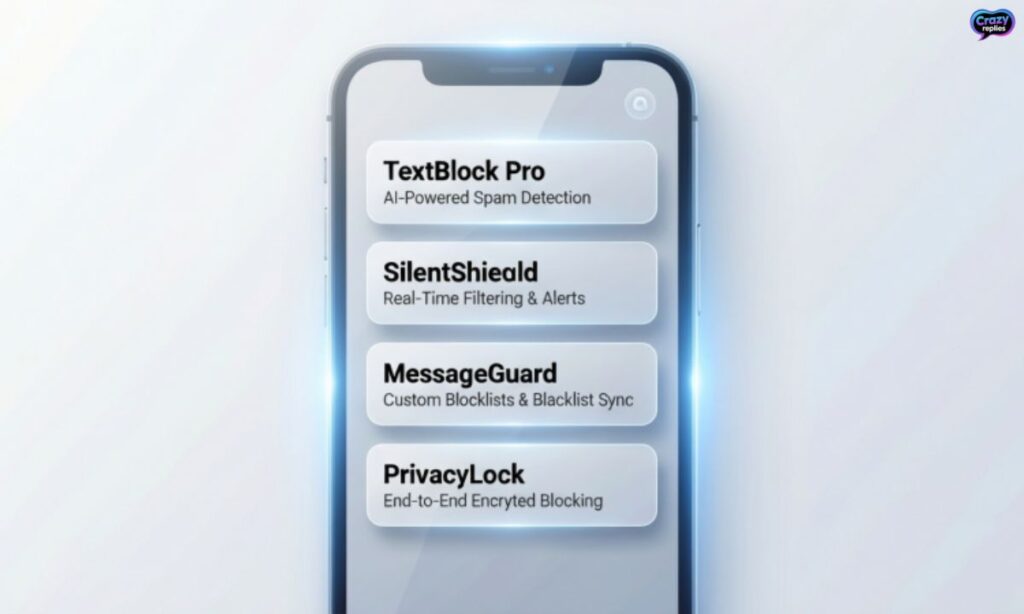
If you want advanced features beyond basic phone settings, third-party text blocker apps can help you stop unwanted texts more effectively.
Apps like Truecaller, Hiya, and Should I Answer offer powerful spam detection and automatic blocking, though you should review their privacy policies before granting access to your contacts.
- Truecaller block texts :Community-based spam database with automatic caller ID and SMS filtering
- Hiya text blocking :Real-time spam alerts and reverse phone lookup with clean interface
- Should I Answer app :User-rated blocking system that identifies telemarketers and scammers
- Advanced features :Custom block lists, wildcard filtering, and scheduled do-not-disturb modes
| App | Spam Detection | Auto-Block | Cost | Best For |
| Truecaller | Excellent | Yes | Free / $2.99/mo Premium | Large spam database |
| Hiya | Very Good | Yes | Free / $2.99/mo | Caller ID integration |
| Should I Answer? | Good | Yes | Free | Community ratings |
| RoboKiller | Excellent | Yes | $4.99/mo | Aggressive filtering |
How Do I Block Text Messages on My Computer?
If you manage SMS online or use messaging platforms on your desktop, knowing how to block text messages on your computer is essential. Many texting platforms let you block texts on desktop just as easily as on your phone.
Desktop blocking is useful for business text blocking and maintaining professional communication. Whether you’re using Mac Messages or Google Voice, you can control your inbox from your computer.
- Choose your platform :Access Messages on Mac, Google Voice, or your business texting platform to manage SMS online
- Block unwanted contacts :Right-click or select the contact, then choose block options to stop harassing texts permanently
- Manage your inbox :Use filters and settings to declutter SMS inbox and maintain texting peace of mind across devices
Corporate Policy: Managing SMS Risks at Scale
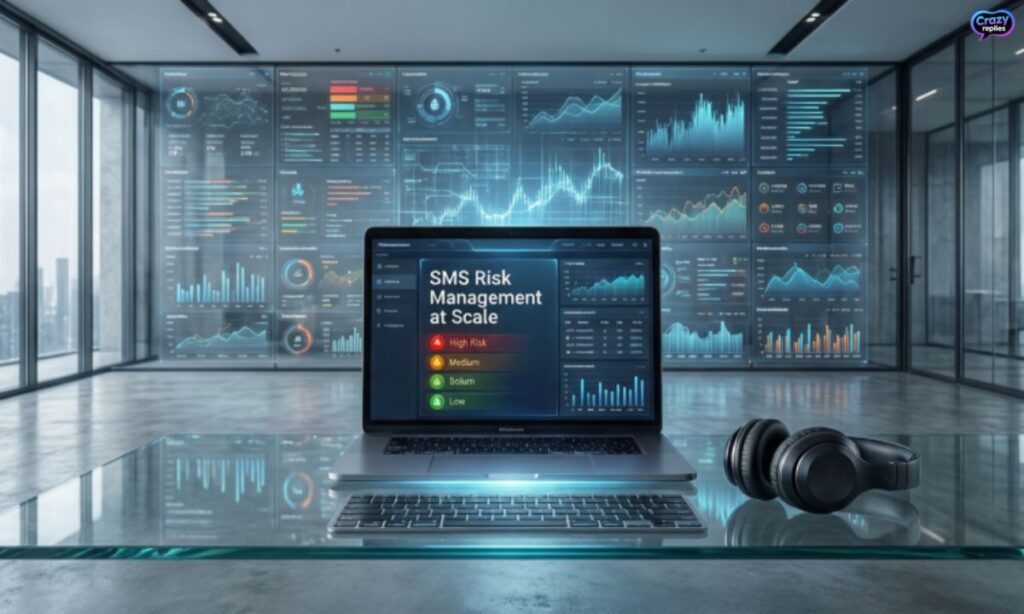
For businesses handling customer communications, creating a clear policy on how to block text messages helps protect both employees and customers. Corporate SMS risk mitigation requires systematic approaches to texting platform security and consistent enforcement.
A solid mobile messaging safety policy prevents data breaches and maintains professional standards. Companies need structured guidelines for business text blocking and customer spam protection.
- Team rules :Establish clear guidelines on acceptable SMS use and when employees should block texts automatically
- Spam prevention :Deploy secure messaging tips and filters to prevent spam texts from reaching company devices
- Employee training :Teach staff to identify text scams and practice proper text message control and privacy
- Compliance monitoring :Regular audits to ensure SMS notification control aligns with privacy laws and security standards
| Policy Element | What to Include | Enforcement Action | Review Frequency |
| Blocking Protocol | When/how to block text messages | Mandatory training | Quarterly |
| Spam Reporting | Steps to report spam texts | Track incidents | Monthly |
| Privacy Standards | Protect phone privacy rules | Compliance checks | Bi-annual |
| Security Tools | Approved message blocker tools | Device audits | Annual |
Best Practices for Blocking Texts Efficiently
Knowing how to block text messages effectively means more than just hitting the block button it requires smart habits and regular maintenance. Following best practices ensures you block texts effectively while maintaining mobile text security and avoiding legitimate messages.
- Regular updates :Keep your phone’s OS and spam protection app updated to block spam messages with the latest filters
- Report spam texts :Always report spam to your carrier and flag messages to improve automatic spam message prevention
- Review blocked list :Check your blocked contacts periodically to ensure you haven’t accidentally blocked important numbers
- Filter unknown senders :Enable settings to block unknown senders and block hidden numbers automatically on your device
- Use apps wisely :Choose reputable third-party SMS blocker apps and review their privacy policies to protect phone privacy
Reporting Spam and Harassment Texts
Learning how to block text messages is important, but reporting spam and harassment takes it a step further by helping protect others too. When you report spam texts to your carrier or authorities, you contribute to better spam message prevention for everyone.
Reporting helps stop harassing texts and supports legal action against scammers. Keep records of unwanted text alerts and threatening messages as evidence for potential investigations.
- Report to carrier :Forward spam messages to 7726 (SPAM) or use your carrier’s official reporting tools to flag telemarketers
- Report to authorities :File complaints with the FTC at ReportFraud.ftc.gov for scams or local police for harassment
- Keep evidence :Screenshot messages, save sender numbers, and document dates before you block number permanently
Tips for Staying Safe from SMS Scams
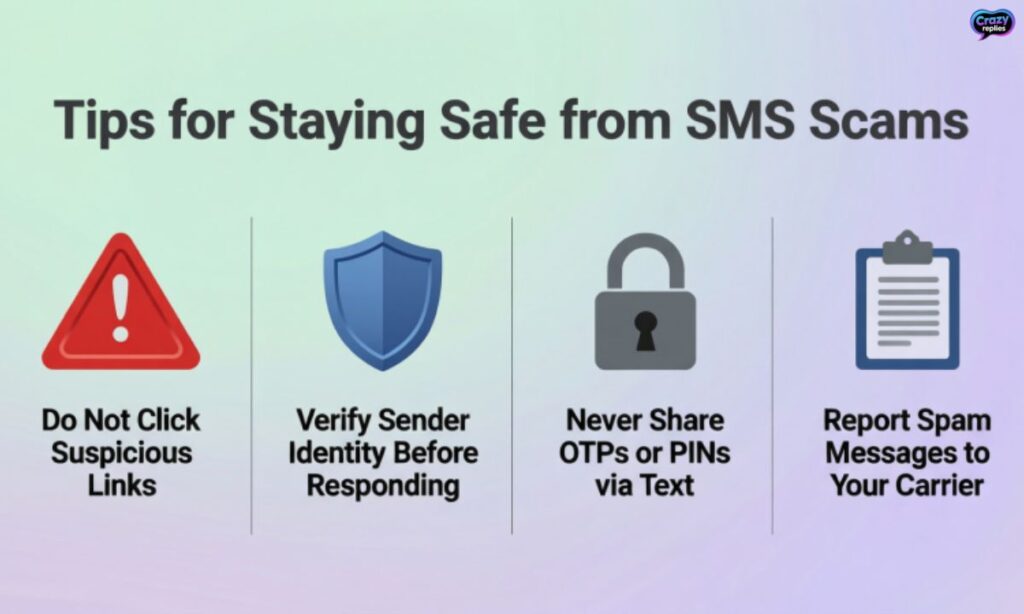
Understanding how to block text messages is your first defense, but staying vigilant helps you avoid text scams before they become a problem. Mobile messaging safety requires awareness of common scam tactics and quick action when something feels off.
Protecting phone privacy means being proactive about text message control and staying cautious with unknown senders. These secure messaging tips help maintain texting peace of mind and prevent spam texts from compromising your personal information.
- Never share personal info :Don’t reply to suspicious texts asking for passwords, bank details, or verification codes via SMS
- Verify links carefully :Avoid clicking links in unwanted texts; verify sender authenticity through official channels before engaging
- Block suspicious numbers :Immediately block contact and report spam when you receive phishing attempts or scam messages
Final Words
Blocking text messages is easy and helps keep your phone stress-free. Just choose the method that works best for you and enjoy a clutter-free inbox.
Whether it’s spam, unknown numbers, or unwanted contacts, blocking messages protects your privacy. Stay safe, stay organized, and take control of your texts!
Frequently Asked Questions
How do I block unwanted text messages?
You can block unwanted texts directly from your messaging app, your carrier, or a third-party app. It’s quick and keeps your inbox stress-free!
How can I block text messages from unknown numbers?
On iPhone or Android, you can filter unknown senders or block them completely. This way, only people you know can reach you.
How do I block text messages on Android?
Open the message, tap “Details” or the three-dot menu, then select “Block number.” You can also report spam while blocking.
How do I block text messages on iPhone?
Go to the message, tap the contact or number, select “Info,” then “Block this Caller.” Done! They won’t know you blocked them.
How can I block text messages on iPhone without opening them?
Turn on Filter Unknown Senders in Settings → Messages. Texts from unknown numbers go to a separate tab, keeping your inbox clean.

Nate Wilder has 4 years of experience crafting witty, smart replies and writing about relationships. At CrazyReplies.com, he shares fun, clever, and heartwarming responses that make conversations more interesting and connections stronger.