
Ever wondered why your Mac feels slower or stuffed with old chats? Deleting iMessages and conversations can free up space and keep your device running smooth.
It’s easier than you think! From removing single messages to clearing entire conversations, your Mac’s Messages app gives you simple ways to tidy up in just a few clicks.
Why delete iMessage history on Mac?
Learning how to delete messages on MacBook keeps your device clean and fast. Old texts, photos, and videos pile up in the Messages app and take up tons of storage space.
Privacy matters too. ⚠️ Your conversations contain personal information that you might not want sitting on your Mac forever. Deleting them regularly helps protect your data.
Key reasons to delete iMessage history:
- Free up space on Mac :Remove old messages and attachments to reclaim storage
- Protect your privacy :Clear sensitive conversations from your device
Ways to delete messages on your Mac
There are several methods for how to delete messages on MacBook depending on what you want to remove. 🧹 You can clear everything from a single text to entire conversation threads with just a few clicks.
Different ways to delete iMessages on Mac:
- Delete a single iMessage Mac :Remove one specific message from a conversation
- Delete multiple messages Mac :Select and erase several texts at once
- Delete conversations on Mac :Clear entire chat threads with one contact
- Delete Messages attachments Mac :Remove photos and videos to free up the most space
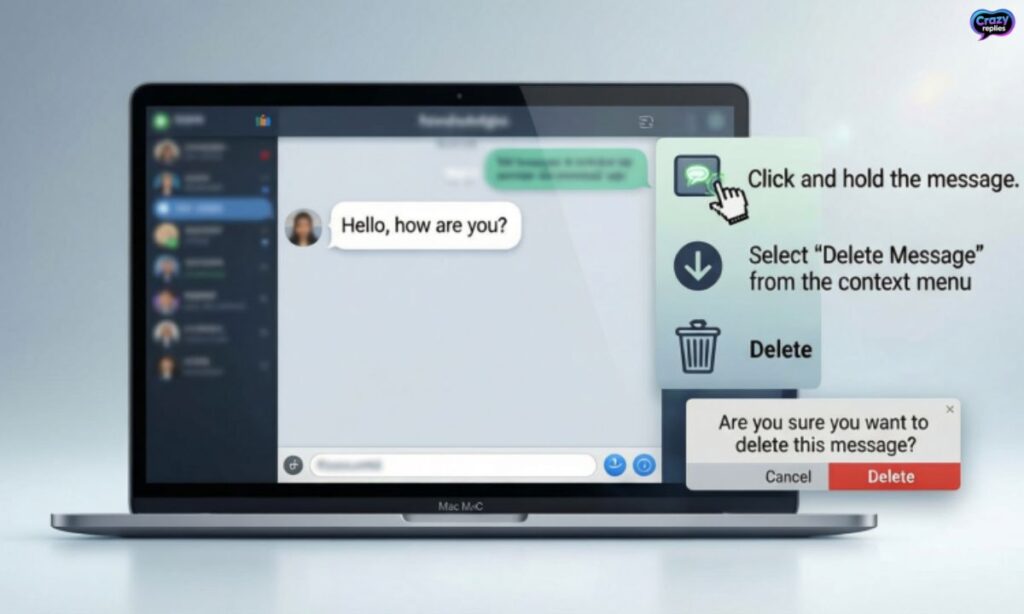
Delete a single message in the Messages app
Sometimes you only need to remove one specific text without deleting the whole conversation. Learning how to delete messages on MacBook at the individual level gives you precise control over what stays and what goes.
This method works great when you want to erase a single embarrassing text or remove a specific photo you sent. The rest of your chat history stays intact while that one message disappears.
Steps to delete single iMessage Mac:
- Step 1: Open the Messages app and find the conversation
- Step 2: Right-click (or Control-click) on the specific message you want to remove
- Step 3: Select “Delete” from the menu and confirm your choice
How to remove multiple messages on your Mac
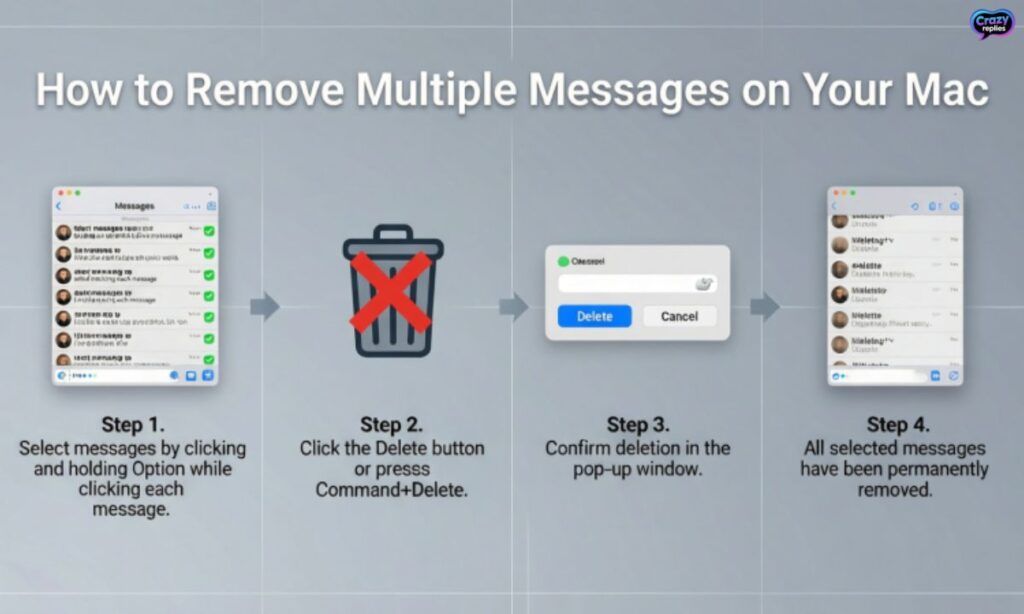
When you need to delete messages on MacBook in bulk, selecting multiple texts at once saves a lot of time. Instead of removing messages one by one, you can highlight several and delete them together.
This Mac Messages storage cleanup method is perfect when you want to clear out a chunk of old texts quickly. 📌 You’ll use keyboard shortcuts to select the messages you want gone.
Steps to delete multiple messages Mac:
- Step 1: Open the Messages app and go to the conversation
- Step 2: Click on one message, then hold Command (⌘) and click other individual messages to select them
- Step 3: Or click one message, hold Shift, and click another to select everything in between
- Step 4: Right-click on any selected message and choose “Delete” to remove them all at once
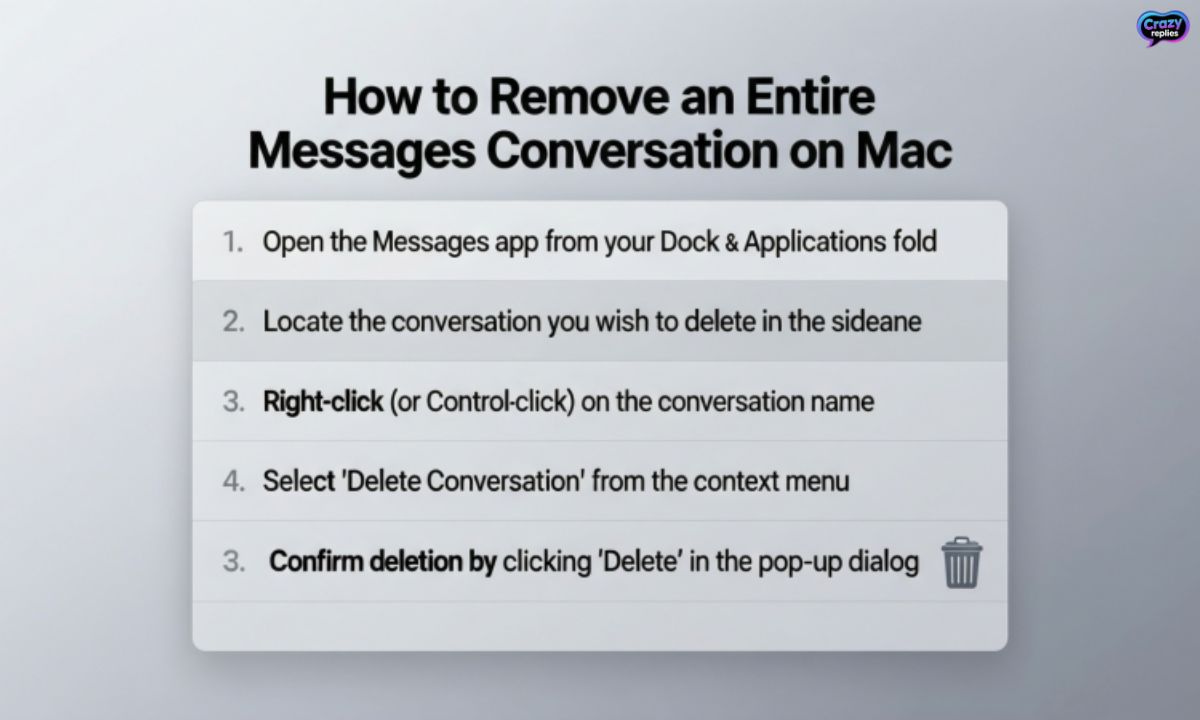
How to remove an entire Messages conversation on Mac
If you want to delete conversations on Mac completely, removing the entire chat thread is the fastest option. This method erases all messages, photos, and attachments from that specific contact in one go.
Learning how to delete messages on MacBook by conversation helps when you need a fresh start with someone or want to remove all traces of a chat. 🗑️ You have two quick methods to choose from.
Ways to delete entire iMessage conversations:
- Control-click method: Right-click on the conversation in the sidebar and select “Delete Conversation” to permanently remove it
- Clear transcript Messages Mac: Select the conversation, go to Edit > Clear Transcript to erase all messages while keeping the contact in your list
Delete messages and attachments
Attachments like photos and videos take up way more space than regular texts. When you delete messages on MacBook, focusing on removing multimedia messages Mac can free up gigabytes of storage instantly.
The Messages app stores every image, video, and file you’ve sent or received. Learning how to delete Messages attachments Mac is key to effective iMessage storage management.📎
Types of attachments you can delete:
- Text messages: Regular iMessages and SMS take minimal space but add up over time
- Photos: Images shared through Messages can consume hundreds of megabytes
- Videos: Video attachments are the biggest storage hogs and should be deleted first
Delete multiple attachments of the same type
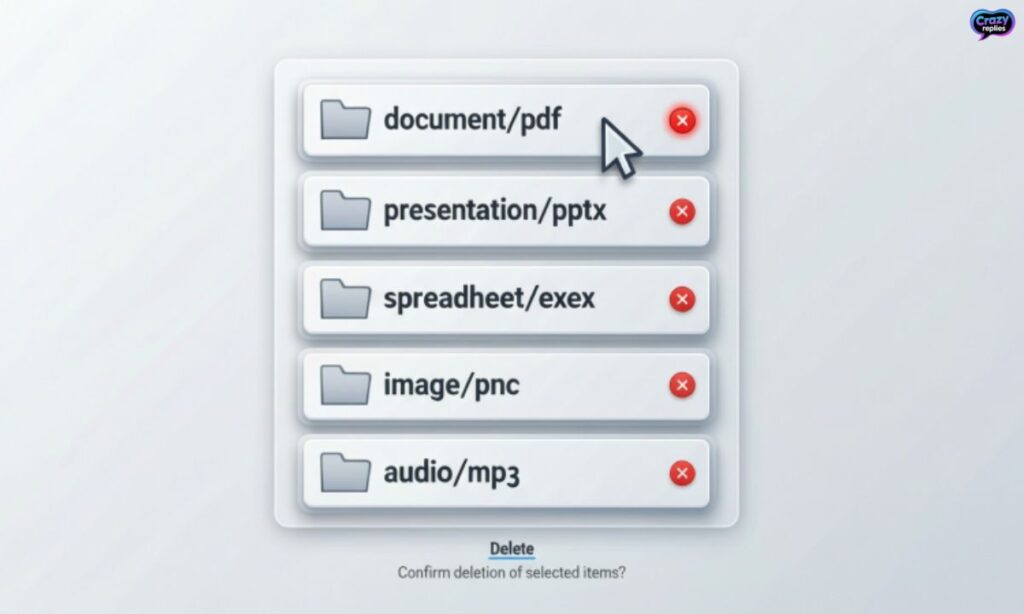
If you want to delete messages on MacBook efficiently, targeting specific attachment types helps you reclaim the most storage. The Messages app lets you view and remove all photos or videos at once instead of hunting through individual conversations.
Steps to delete iMessage attachments cleanup by type:
- Step 1: Open Messages, click Messages in the menu bar, then select Preferences or Settings
- Step 2: Go to the iMessage tab and click Manage next to storage usage
- Step 3: Choose attachment types like 🖼️ Photos or 🎥 Videos to see all files of that kind
- Step 4: Select the attachments you want to remove and click Delete to free up space on Mac
Delete a conversation
When you need to erase an entire chat thread, knowing how to delete messages on MacBook by conversation is essential. 🗑️ This removes everything texts, photos, videos, and all message history with that person.
Two quick methods to delete conversations on Mac:
- Right-click method: Control-click on the conversation in the sidebar and select “Delete Conversation” to permanently erase it
- Swipe to delete: Hover over the conversation, swipe left, and click the trash icon to remove it instantly
Delete all messages from iCloud
If you use iCloud Messages sync Mac, your texts are stored in the cloud and synced across all your Apple devices. ☁️ Learning how to delete messages on MacBook from iCloud ensures they’re removed everywhere, not just on your Mac.
When you delete messages from iCloud, they disappear from your iPhone, iPad, and other devices too. This iMessage cleanup guide method is perfect when you want a complete fresh start across your entire Apple ecosystem.
Steps to delete synced messages Mac:
- Disable iMessage iCloud sync: Go to System Settings > Apple ID > iCloud, turn off Messages, and choose to delete messages from your Mac
- Delete messages permanently: Once syncing is off, delete iMessage history Mac using any method, and they’ll be removed from iCloud storage too
Permanently remove recently deleted messages and attachments
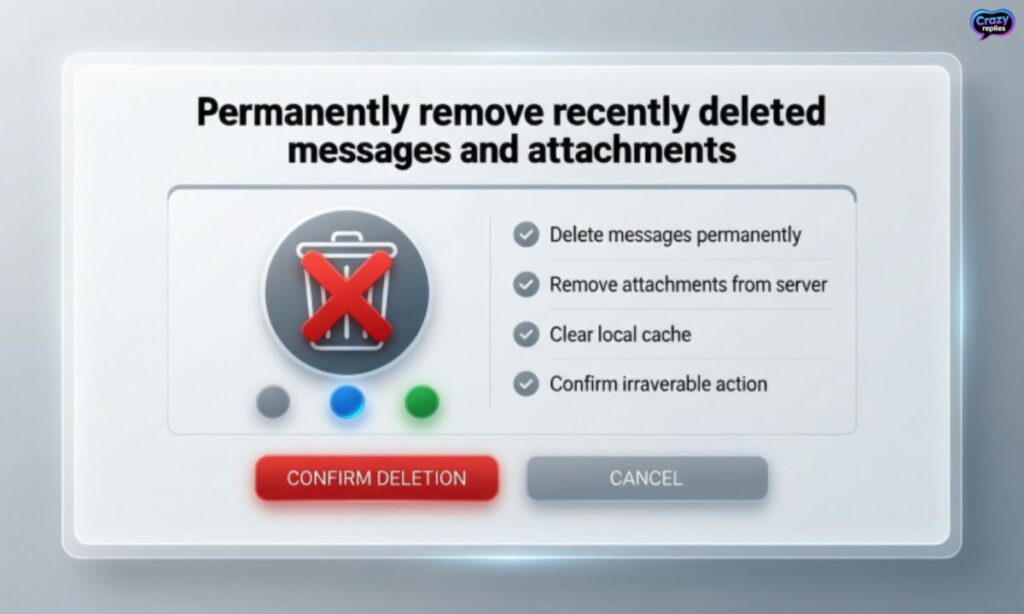
When you delete messages on MacBook, they might sit in a “Recently Deleted” folder for 30 days before being erased forever. ⏳ To truly free up space on Mac immediately, you need to permanently remove these deleted items.
Steps to erase messages permanently:
- Open Recently Deleted: In the Messages app, look for the “Recently Deleted” folder in the sidebar and click on it
- Permanently delete: Select the messages or conversations you want gone, then click “Delete” again to remove them from Mac storage permanently
How to automatically delete text messages on Mac
Instead of manually clearing old texts, you can set up auto delete messages Mac to handle the cleanup for you. ⏰ This feature in macOS Messages preferences automatically removes old conversations based on your chosen timeframe.
Learning how to delete messages on MacBook automatically is perfect for Mac storage optimization tips without lifting a finger. Your Mac will erase iMessage history in the background, keeping your Messages app storage usage under control.
Auto-deletion options in Messages app macOS settings:
- Keep messages 30 days Mac: Automatically delete text messages MacBook after one month ideal for freeing up maximum storage
- Keep messages one year Mac: Keep conversations longer while still preventing endless message buildup on your device
How to completely erase iMessage history from your Mac
If you want total Messages privacy Mac, deleting conversations through the app isn’t always enough. 🔒 To completely erase iMessage history and ensure no traces remain, you need to go deeper into your Mac system cleanup.
This advanced method for how to delete messages on MacBook removes the Messages database Mac files where all your chat data is stored. It’s the most thorough way to clean Mac messages safely and protect your privacy.
Steps for complete iMessage cache Mac removal:
- Delete all conversations: First, remove all chats through the Messages app using the methods above to clear visible message data
- Remove Messages database files: Go to Finder > Go > Go to Folder, type ~/Library/Messages/ and delete the contents to erase chat conversations Mac completely
Recover deleted messages on Mac
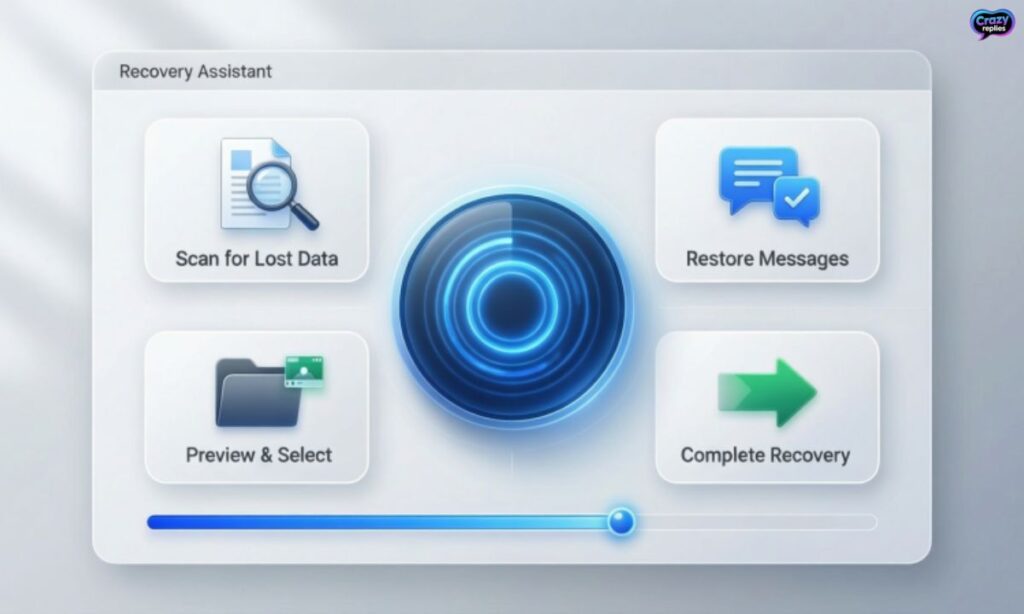
Sometimes you accidentally delete conversations on Mac that you actually needed. 💾 The good news is that if you have backups enabled, you might be able to get those messages back before they’re gone forever.
Knowing how to delete messages on MacBook is important, but understanding recovery options gives you a safety net. These methods work best if you act quickly after deleting important chats.
Ways to recover deleted iMessage history Mac:
- iCloud Messages sync Mac: If Messages syncing is enabled, deleted texts might still exist on other Apple devices for a short time
- Time Machine backup: Restore your Messages database from a Time Machine backup made before you deleted the conversations
- Third-party recovery tools: Specialized Mac data recovery software can sometimes retrieve deleted message files from your hard drive
Manage iMessage storage and attachments
Regular iMessage storage management keeps your MacBook running smoothly without constant manual cleanup. 📊 The Messages app has built-in tools that show exactly how much space your conversations are using.
Learning how to delete messages on MacBook strategically means targeting the biggest storage hogs first. Remove multimedia messages Mac like videos and high-resolution photos to make the biggest impact on your available space.
Tips for effective Mac message data cleanup:
- View storage usage: Go to Messages > Settings > iMessage and click Manage to see which conversations and attachments use the most space
- Remove large attachments: Sort by size and delete Messages attachments Mac that are taking up gigabytes, especially old videos
- Optimize storage regularly: Set auto-delete rules and periodically clean junk files Mac to prevent message buildup
Prevent iMessage clutter in the future
Once you know how to delete messages on MacBook, the next step is stopping clutter before it builds up again. 🧹✨ Smart habits and automatic settings keep your Messages app clean without constant manual maintenance.
Taking a proactive approach to Mac privacy protection and storage saves you from major cleanup sessions later. These simple strategies for iMessage cleanup guide maintenance take just minutes to set up.
Best practices to keep Messages app storage usage low:
- Enable auto-delete messages Mac: Set your Messages to keep conversations for 30 days or one year so old chats disappear automatically
- Delete attachments regularly: Make it a habit to remove old photos and videos from conversations every few weeks
- Organize and archive: Delete chat data Mac from contacts you no longer talk to and keep only active, important conversations
Final Words
Cleaning up your Mac is simple. Just delete iMessages and conversations you no longer need.
This helps free space and keeps your chats organized. Your Mac will run faster and feel lighter.
Frequently Asked Questions
How do I delete a single message on my MacBook?
Click the message, press Delete, and confirm it’s gone in a flash!
Can I delete multiple messages at once on MacBook?
Yes! Hold Command or Shift, select messages, and hit Delete to clear them fast.
How do I delete an entire conversation on MacBook?
Control-click the chat and choose “Delete Conversation” to remove it completely.
Will deleting messages on MacBook remove them from my iPhone?
Only if iCloud Messages is on otherwise, your iPhone stays safe with its messages.
How can I automatically delete old messages on MacBook?
Go to Messages > Preferences > General, then set “Keep messages” to 30 Days or 1 Year.
How do I delete message attachments on MacBook?
Open the conversation, select attachments like photos or videos, and delete them to free space.
Is there a way to permanently erase deleted messages on MacBook?
Yes! Empty the Recently Deleted folder to make sure they’re gone for good.

Nate Wilder has 4 years of experience crafting witty, smart replies and writing about relationships. At CrazyReplies.com, he shares fun, clever, and heartwarming responses that make conversations more interesting and connections stronger.