
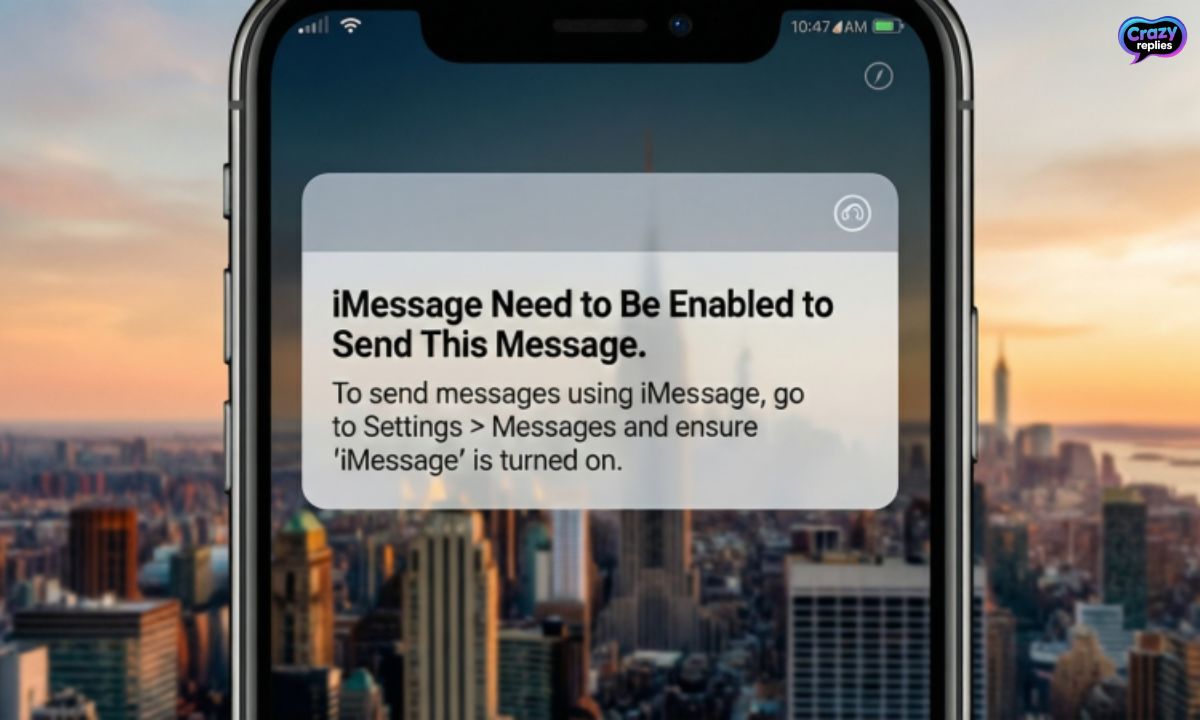
Ever tried sending a text and suddenly saw “iMessage needs to be enabled” pop up? Don’t worry this common iPhone issue is usually quick to fix with a few simple setting checks.
From turning iMessage on and off to checking your network or Apple server status, these easy steps get your messages flowing again. Follow the fixes below and get back to chatting without interruptions.
‘iMessage Needs to Be Enabled to Send This Message’ Explained
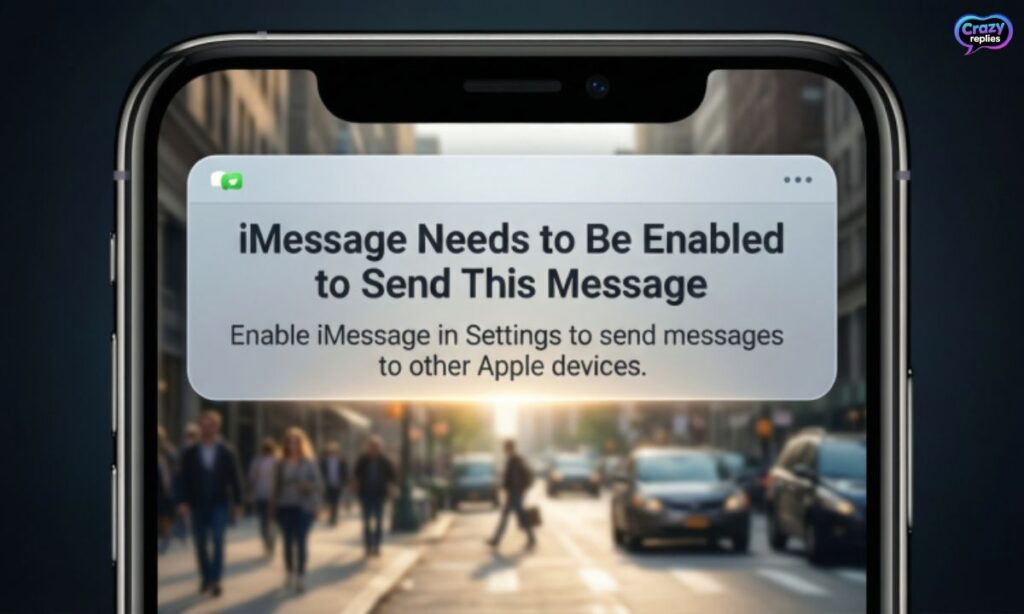
When you see “imessage needs to be enabled to send this message,” it means your iMessage service isn’t turned on. Your iPhone can’t send messages through Apple’s platform until you fix this iMessage not working on iPhone issue.
- iMessage Is Turned Off :The iMessage toggle in your settings is disabled, blocking you from sending messages.ℹ️
- Activation Failed :Your iMessage activation failed, leaving the service stuck and unable to work properly.📩
- No Internet Connection :iMessage needs internet connection to activate and send messages to other Apple devices.
12 Ways to Fix ‘iMessage Need to Be Enabled to Send This Message’
Dealing with “imessage needs to be enabled to send this message” can be annoying, but don’t worry there are several proven solutions. Below are 12 effective methods to fix this iMessage not sending messages problem and get your Apple Messages app working again. 🛠️
Fix Network Settings
If “imessage needs to be enabled to send this message” keeps appearing, the issue might be your network configuration. Resetting your network settings can fix iMessage network error problems and resolve connectivity issues blocking iMessage activation. 📶
Steps to reset network settings:
- Open Settings on your iPhone and tap General.
- Scroll down and select Transfer or Reset iPhone.
- Tap Reset and choose Reset Network Settings.
- Enter your passcode and confirm your iPhone will restart with fresh network settings.
Check If iMessage is Enabled
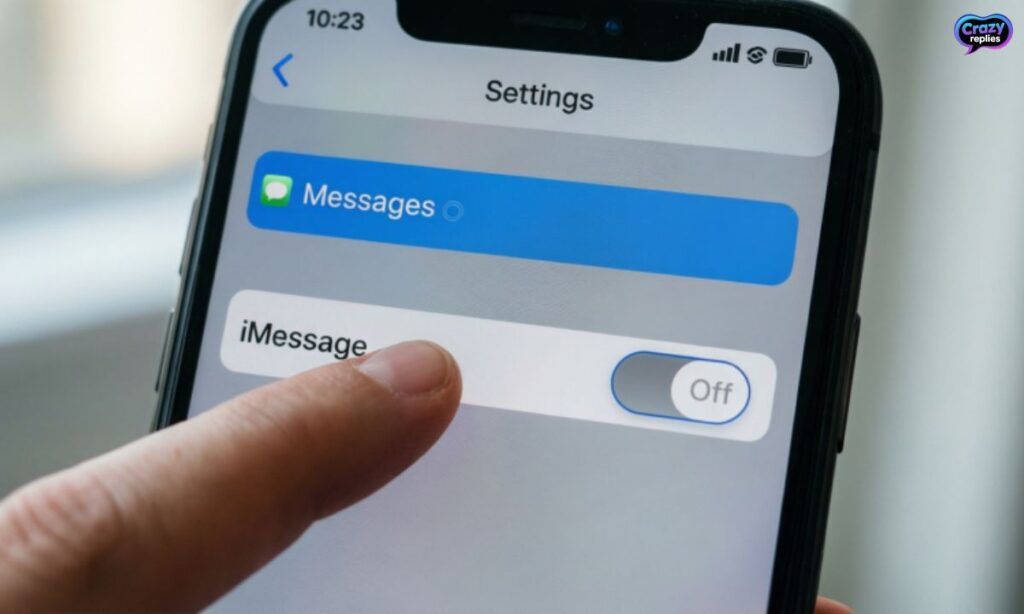
The first thing to do when you see “imessage needs to be enabled to send this message” is to check iMessage settings on your device. Sometimes the iMessage toggle missing or turned off is the main reason behind this iMessage not enabled issue. ✅
Steps to enable iMessage on iPhone:
- Open Settings and scroll down to Messages.
- Find the iMessage toggle at the top and make sure it’s turned ON (green).
- Wait a few seconds for iMessage to activate if it says “Waiting for activation,” give it a minute to connect.
Investigate the Server
Sometimes “imessage needs to be enabled to send this message” appears because of problems on Apple’s end, not yours. If iMessage server down or Apple iMessage troubleshooting shows service issues, you’ll need to wait until Apple fixes it. 🌐
How to check Apple server status:
- Visit Apple System Status Website :Go to apple.com/support/systemstatus and look for iMessage in the list if there’s a yellow or red indicator, the iMessage service unavailable issue is on Apple’s side.
- Wait for Apple to Resolve :When the server has problems, no amount of fixing on your device will help until Apple restores the service, so check back regularly.
Disable and Enable the iMessage Attributes
A quick toggle can often resolve “imessage needs to be enabled to send this message” by refreshing the connection. This simple reset iMessage settings trick forces your device to reconnect and can fix iMessage activation problem instantly. 🔄
Steps to disable and enable iMessage:
- Open Settings and tap Messages.
- Toggle iMessage to OFF and wait about 10 seconds.
- Turn iMessage back ON (it should turn green).
- Check if it says “Waiting for activation” this means it’s reconnecting.
- Wait a minute for the activation to complete, and try sending a message again.
Restart Your Device
When “imessage needs to be enabled to send this message” won’t go away, restart iPhone to fix iMessage issues by clearing temporary glitches. A simple reboot can resolve iMessage connectivity problem and refresh your device’s connection to Apple’s servers. 🔁
How to restart your iPhone:
Press and hold the Power button (and Volume button on newer iPhones) until the slider appears, then drag to power off. Wait 30 seconds, then press the Power button again to turn it back on and check if the iMessage error message fix worked.
Reset iMessage Settings
If “imessage needs to be enabled to send this message” persists, you may need to reset iMessage settings completely. This Apple Messages troubleshooting method clears configuration issues and forces a fresh iMessage activation on your device. ⚙️
Steps to reset iMessage settings:
- Open Settings and go to Messages.
- Turn iMessage OFF and also toggle off Send & Receive.
- Restart your iPhone by powering it off and back on.
- Go back to Settings > Messages, turn iMessage ON, and reconfigure your send and receive settings.
Sign Out and Sign In to Apple ID
The “imessage needs to be enabled to send this message” error often happens due to iMessage login Apple ID issue where your account isn’t properly connected.
Signing out and back in can fix iMessage send and receive issue by re-authenticating your Apple ID with the Messages app. 👤
Steps to sign out and sign in:
- Open Settings > Messages > Send & Receive and tap your Apple ID, then select Sign Out.
- Wait about 30 seconds, then tap Use your Apple ID for iMessage and sign back in.
- Select your phone number and email address for iMessage, then check if the iMessage not enabled issue is resolved.
Check Date and Time Settings
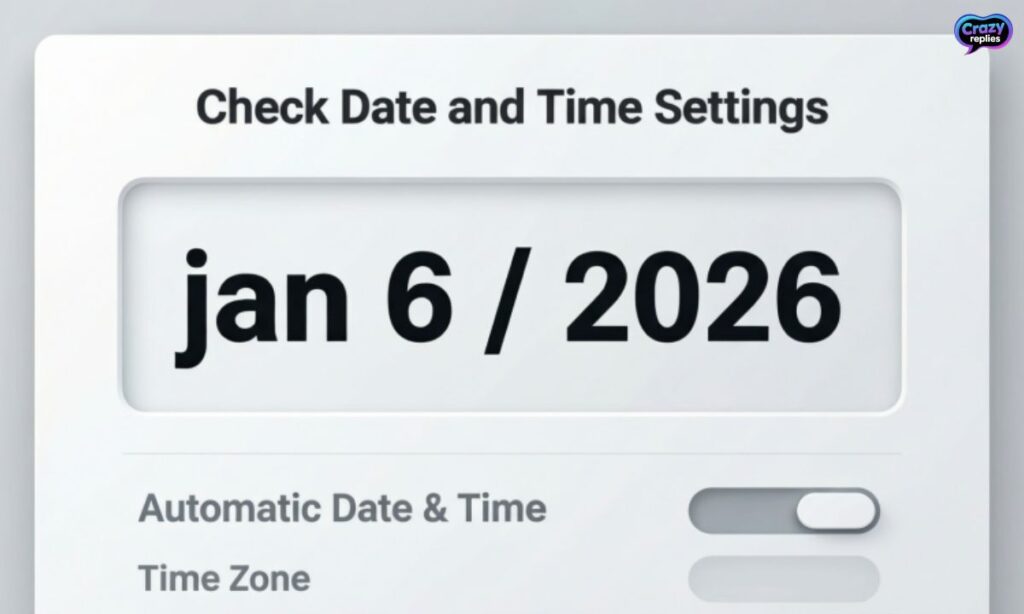
Incorrect date and time settings can trigger “imessage needs to be enabled to send this message” because iMessage verification failed when your device clock doesn’t match Apple’s servers. This iMessage configuration issue is easy to overlook but simple to fix. ⏰
- Auto Settings Must Be On :Go to Settings > General > Date & Time and enable Set Automatically so your iPhone syncs with the correct time zone and prevents iMessage activation problem.
- Manual Time Causes Errors :If your date or time is set manually and incorrect, iMessage won’t activate properly, leading to the iMessage stuck on waiting for activation error.
Update iOS or macOS to the Latest Version
Sometimes “imessage needs to be enabled to send this message” appears due to outdated software causing bugs. Updating to the latest iOS or macOS can fix iMessage on iOS and resolve iMessage error after update issues. ⬆️
Why updates matter:
- Bug Fixes :New updates fix Apple Messages error and iMessage activation problem automatically.
- Better Sync :Updates ensure iMessage not syncing across devices is resolved and all features work smoothly.
Ensure iMessage Is Set as Default Messaging App
If you’re getting “imessage needs to be enabled to send this message,” check that Messages is your default app. Sometimes iMessage SMS vs iMessage settings get mixed up, causing messages to fail or iMessage sending as text message instead. 📱
What to check:
- Default App Settings :Go to Settings > Apps > Default Apps and make sure Messages is selected as your default messaging app to avoid iMessage send failed errors.
- Message Type Selection :In Messages settings, ensure iMessage is prioritized over SMS so your device doesn’t automatically switch modes and trigger the iMessage not sending messages problem.
Check SIM Card and Phone Number Status
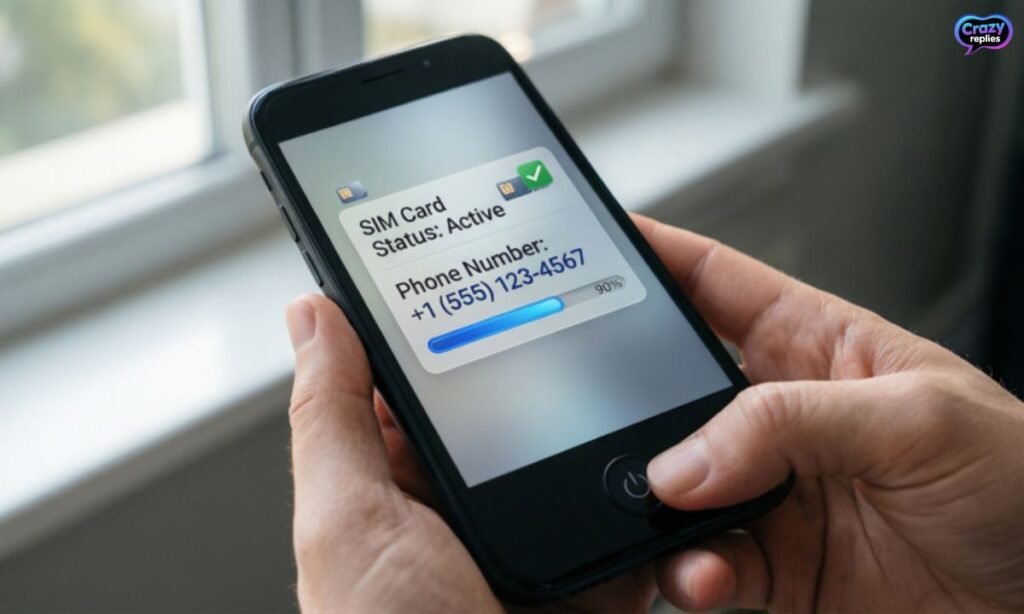
The “imessage needs to be enabled to send this message” error can occur if your SIM card isn’t properly recognized or your number isn’t activated. This iMessage phone number not selected issue prevents iMessage from linking to your mobile number correctly. 📞
What affects SIM and phone number:
- SIM Card Not Detected :If your SIM isn’t inserted properly or is damaged, iMessage won’t activate because it can’t verify your phone number.
- Phone Number Not Selected :Go to Settings > Messages > Send & Receive and make sure your phone number is checked for iMessage activation.
- Carrier Issues :Sometimes your carrier needs to activate iMessage services, so contact them if iMessage won’t activate despite trying other fixes.
Reset All Settings on Your Device
When nothing else works to fix “imessage needs to be enabled to send this message,” resetting all settings can resolve deep iMessage configuration issue problems. This won’t delete your data but will reset iMessage settings and all system preferences to defaults. ⚠️
How to reset all settings:
Go to Settings > General > Transfer or Reset iPhone > Reset > Reset All Settings, enter your passcode, and confirm. Your iPhone will restart, and you’ll need to reconfigure Wi-Fi, iMessage, and other preferences, but this often fixes stubborn iMessage disabled automatically errors.
How to Enable iMessage on iPhone/Mac?
If you’re wondering how to turn on iMessage after seeing “imessage needs to be enabled to send this message,” the process is simple on both iPhone and Mac.
Enabling iMessage properly ensures you can send messages without the iMessage requires enabling error appearing again. 📲
On iPhone
Follow these steps to enable iMessage on iPhone and fix the iMessage not enabled issue:
- Open Settings and scroll down to Messages.
- Toggle iMessage to ON (it will turn green).
- Wait for “Waiting for activation” to complete this may take a few minutes.
- Go to Send & Receive and select your phone number and email address for iMessage.
On Mac
Here’s how to enable iMessage on Mac and resolve iMessage Mac activation error problems:
- Open the Messages app on your Mac.
- Click Messages in the menu bar and select Settings (or Preferences).
- Go to the iMessage tab and click Sign In with your Apple ID.
- Check your email and phone number under You can be reached for messages at to complete setup. 💻
The Optimal Method to Send Messages – AirDroid Personal
If you’re tired of dealing with “imessage needs to be enabled to send this message” errors, AirDroid Personal offers a reliable alternative to iMessage for sending messages across devices.
This powerful AirDroid message sync tool lets you manage texts from your computer without worrying about iMessage connectivity problem issues. 🚀
Why AirDroid Personal is the best alternative:
- Send Messages from Any Device :Use your computer, tablet, or phone to send SMS and texts without needing iMessage activation or Apple devices.
- Cross-Platform Compatibility :Works on Windows, Mac, Android, and iOS, eliminating iMessage not syncing across devices frustrations.
- No Activation Errors :Skip the iMessage stuck on waiting for activation problem and start messaging instantly without server dependency.
- File Transfer & Screen Mirroring :Beyond messaging, transfer files wirelessly and mirror your phone screen for complete device control. 🔗
- Always Online Access :Access your messages anytime through the web or app without worrying about iMessage service unavailable or Apple System Status issues.
Final Words
Having trouble sending iMessages? Don’t worry! Just check your settings, network, and Apple ID, and you can fix the issue quickly.
A simple restart or updating your device often solves the problem too. Follow the steps, and your messages will start sending again smoothly.
Frequently Asked Questions
Why does my iPhone say “iMessage needs to be enabled to send this message”?
This happens when iMessage is turned off or not activated on your device. Simply enable it in Settings to fix it.
How do I enable iMessage on my iPhone?
Go to Settings > Messages and switch on iMessage. Wait a moment for activation, and you’re ready to text.
What to do if iMessage still doesn’t work after enabling it?
Check your network connection, restart your device, or sign out and back into your Apple ID to solve most issues.
Can “iMessage needs to be enabled” appear on Mac too?
Yes! On Mac, open Messages > Preferences, sign in with Apple ID, and ensure iMessage is enabled.
Does updating iOS fix the “iMessage needs to be enabled” error?
Often, yes! Updating your iPhone to the latest iOS can resolve bugs causing iMessage activation problems.
How long does it take for iMessage to activate?
Usually a few seconds to a few minutes. Make sure your device has internet access while waiting.
Are there alternatives if iMessage still fails?
You can use apps like AirDroid Personal or standard SMS to send messages while fixing iMessage issues.

Nate Wilder has 4 years of experience crafting witty, smart replies and writing about relationships. At CrazyReplies.com, he shares fun, clever, and heartwarming responses that make conversations more interesting and connections stronger.